

Copy trading has a bad reputation — and much of it is deserved. The market is full of passive-income promises, “infallible” robots, and services that ask for your broker password as if it were a signup field. This guide is the opposite of that: a straight explanation of how automated execution via Expert Advisor works on MetaTrader 5, what it costs, what it demands from you and — above all — what it can and cannot do.
If by the end you decide it is not for you, the guide has done its job anyway. An informed decision is the only outcome we care about here.
What an Expert Advisor is, without the mystique
An Expert Advisor (EA) is a program written in MQL5 that runs inside your MetaTrader 5 terminal. It is not magic intelligence, nor a “black box that prints money”: it is software that executes rules. In copy trading, the main rule is simple — receive trade instructions from an authorized source and execute them on your account, within the limits you configured.
The detail that changes everything is where it runs: in your terminal, on your machine, in the session you opened with your broker. In the zero-custody model, the platform never receives your login or password — it publishes cryptographically signed instructions (HMAC), and the EA validates each one before executing. If the signature does not match, the order dies right there.
MetaTrader 5 supports EAs natively — the “Algo Trading” button in the top bar switches all of them on and off at once. It is an official platform feature used by millions of traders, and most brokers allow it as a matter of course. This is not a hack: it is the canonical way to automate execution on MT5.
What running an EA actually costs
Let's start with what it does not cost: the TraderClub.ai EA itself is free. It is included in the subscription, with no fee per executed order and no percentage of results. You do not pay a “toll” per trade — which, as we will see, also removes a perverse incentive common in this market.
What does cost money, spelled out in full: the platform subscription (Pro at R$79/month or Elite at R$112/month), your broker's normal costs (spread and/or commission, which would exist anyway) and, optionally, a VPS if you do not want to keep your computer on. That is it. Any service that hides its cost structure deserves suspicion.
Your own PC or a VPS?
The EA only executes while the MT5 terminal is open and connected. That leaves two practical routes: run it on your own computer, or rent a VPS (a virtual server that stays on 24/7). Neither is “the right one” — it depends on your routine and how much market time you want to cover.
| Criterion | Your own PC | VPS |
|---|---|---|
| Monthly cost | Zero (beyond electricity) | Low — basic Windows VPS plans are enough |
| Availability | Depends on the PC staying on and online | 24/7, independent of your machine |
| Operational risk | Power cuts, internet drops, Windows updates | Datacenter failure (rare) — and you can still shut it down remotely |
| Maintenance | You manage it | You manage it remotely, but uptime is the provider's job |
| Who it suits | Testing, demo accounts, traders active in specific windows | Anyone wanting continuous coverage without depending on their PC |
Start on your PC with a demo account. Validate the routine, the risk limits, and the EA's behavior for a few weeks with no real money at stake. A VPS is a decision for after the process is proven — not before.
Step by step: connecting the EA to your MT5
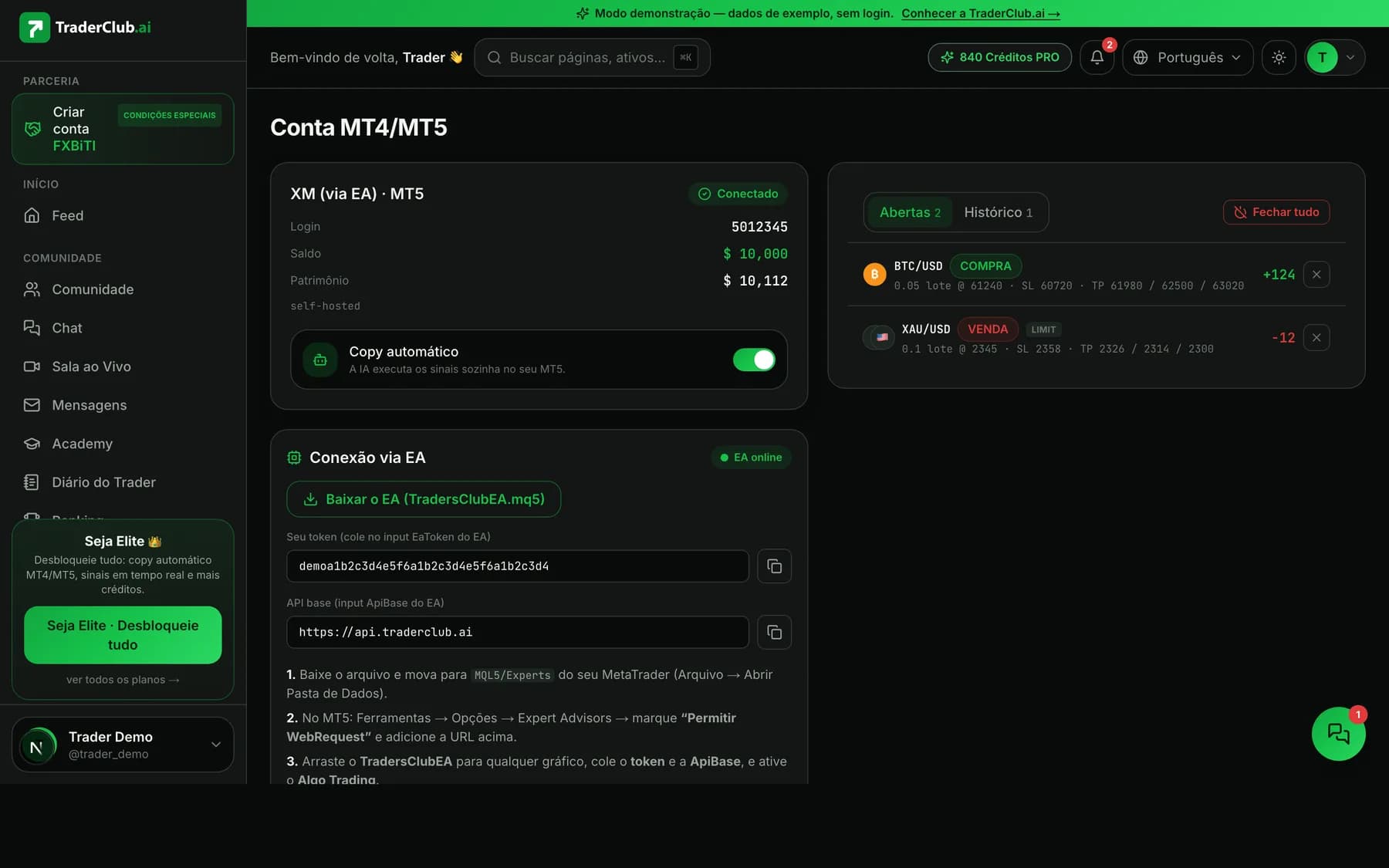
The full process takes a few minutes and happens entirely on your side — at no point do you type broker credentials anywhere outside your own terminal:
- 1. Download the EA from your TraderClub.ai member area and copy the file into your MT5 Experts folder (File → Open Data Folder → MQL5 → Experts).
- 2. Restart the terminal or refresh the Navigator list so the EA shows up.
- 3. Enable “Algo Trading” in the top bar and, in the Expert Advisors options, allow WebRequest for the platform URL — that is how the EA receives signed instructions.
- 4. Drag the EA onto any chart. It trades from the instructions it receives, not from the chart it sits on.
- 5. Paste your TraderClub.ai account token into the EA parameters. The token identifies your subscription — it is not, and will never be, your broker password.
- 6. Configure your risk limits: risk per trade, maximum simultaneous exposure, and a lot size appropriate to your capital.
- 7. Confirm in the platform dashboard that the EA shows as connected, and watch the first executions in the MT5 Journal/Experts tabs.
First run always on demo. No exceptions. It is the only way to verify spread, your broker's server times, and the behavior of your limits without paying tuition to learn.
Get the next ones
One article a week, straight to your inbox. No spam.
Risk limits and the kill-switch: the heart of the system
The most important part of a copy EA is not execution — it is containment. Before any order goes in, the EA checks the limits you defined: maximum risk per trade, total simultaneous exposure, and position size. Any instruction that would breach a limit is refused locally, regardless of what the platform published. The limit is yours, enforced on your machine.
Above that sit two braking layers. The first is the kill-switch: one click and the EA stops accepting new instructions — on top of the physical shutdown that always exists (removing the EA or closing the terminal). The second happens before a signal even reaches you: at TraderClub.ai, a risk AI (Claude) can veto signals during macro event windows — rate decisions, payrolls, CPI — when spread and slippage historically worsen and technical reads lose reliability.
An order of precedence worth memorizing: your local limits > kill-switch > AI risk veto > signal. The signal is the last link in the chain, not the first. Any system that inverts that order is designed around the wrong interest.
What the EA can do — and what it can never do
It is worth putting both lists side by side, because this is where the difference between serious automation and a blank check lives.
What the EA can do:
- Open and close orders on signaled instruments, within your risk limits.
- Apply the stop loss and take profit defined in the signal.
- Refuse instructions with an invalid HMAC signature or outside your parameters.
- Keep local logs of everything it executed and why.
What the EA can never do:
- Withdraw, transfer, or move money — that requires broker-side actions an EA simply cannot reach.
- See or transmit your credentials — it runs in the session you opened; your login and password never pass through it or through the platform.
- Trade beyond the limits you configured.
- Stop you from closing a position manually or from switching it off — the terminal is yours, the final word is yours.
Common mistakes (and how to avoid them)
- Algo Trading switched off: the EA loads but nothing executes. Check the top-bar button and the “hat” icon in the chart corner.
- WebRequest without the authorized URL: the EA cannot fetch instructions. The URL must be whitelisted in the Expert Advisors options.
- A fixed lot size too large for the capital: the most expensive mistake. Size risk per trade as a percentage, not by feel.
- Skipping the demo phase: you end up discovering your broker's quirks (spread, hours, execution) with real money. Costly and unnecessary.
- Closing the terminal assuming the EA keeps running: it does not. A local EA only exists while MT5 is open — that is the price (and the guarantee) of zero-custody.
- Ignoring the broker's server time: candles and news windows follow the server's timezone, not your wall clock.
The question to ask before copying anyone
Nothing in this guide matters if the signals being copied lack verifiable quality. Before connecting an EA to any source — including ours —, demand a public track record with the complete history (wins and losses), resolved automatically against real candles, with no human hand on the scale. At TraderClub.ai, every signal comes from confluence analysis (EMA, RSI, MACD, ADX) with multi-timeframe confirmation on H1, and its outcome is written to a hash-chain ledger anyone can audit. A Telegram screenshot is not evidence; a ledger is.
Ready to test safely? Create your account, connect the EA to your demo account, and watch every order happen in your own terminal.
Risk warning: leveraged trading in forex, crypto, and derivatives carries high risk and can result in the loss of your invested capital. Automation executes rules — it does not eliminate market risk or guarantee results. Past results do not guarantee future results. Start on demo, use risk limits, and never trade capital you cannot afford to lose.